Restore Overview
GitSec's restore feature lets you recover a backup snapshot to a new or existing GitHub repository.
Restore App vs. Backup App
GitSec uses two separate GitHub Apps:
| App | Permissions | Purpose |
|---|---|---|
| Backup App | Read-only | Reads your repository data to create backups. |
| Restore App | Read & Write | Creates or pushes to repositories during a restore. |
The Restore App is separate because restoring requires write access to create new repositories or push code. This separation follows the principle of least privilege — the Backup App never has write access to your repositories.
The Restore App is installed on-demand when you start your first restore. You will be prompted to install it on the target GitHub organization during the restore wizard.
When installing the Restore App, you must select All repositories — not "Only select repositories". The restore process requires access to all repositories in the target organization to function correctly. If you select specific repositories only, the restore will fail.
What Can Be Restored?
Currently, the following scopes can be restored:
| Scope | Status |
|---|---|
| Code & Commits | Active |
| Pull Requests | Coming Soon |
| Issues | Coming Soon |
| Wiki Pages | Coming Soon |
| Projects | Coming Soon |
| Releases | Coming Soon |
Global Restores Page
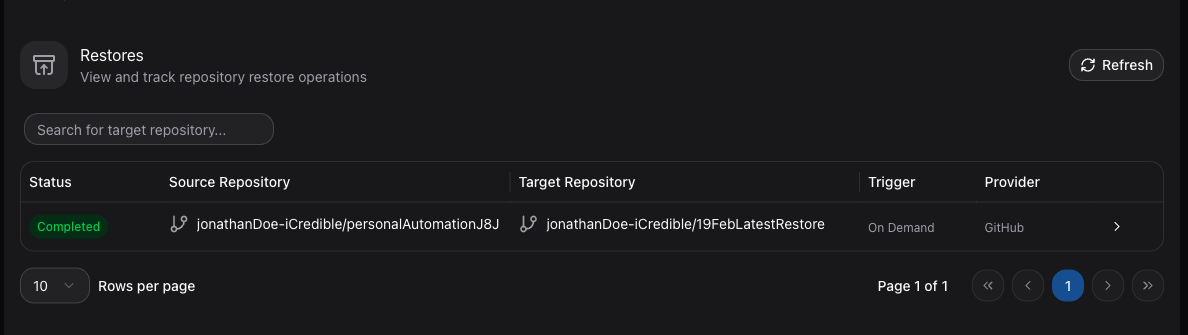
Navigate to Restores in the sidebar to see all restore operations. The table shows:
- Status — Success, in progress, or failed.
- Source Repository — The repository the backup was taken from.
- Target Repository — The repository the backup was restored to.
- Trigger — How the restore was initiated.
- Provider — The Git provider (e.g., GitHub).
Starting a Restore
There are two ways to start a restore:
- From the Backups page — Click the restore button on any backup row.
- From a repository's Restore tab — Select a backup and start the wizard.
Both methods launch the Restore Wizard.